

A new VPS should expose only the ports actually used by its running services. On Ubuntu, UFW provides a straightforward way to manage host firewall rules.
This guide focuses on preserving remote SSH access: first identify the ports in use, then allow the required connections and enable the firewall only after verification.
When to use this guide
The commands below target a host firewall managed with UFW on Ubuntu. Rule behaviour can differ on other distributions, for Docker-published ports or with a separate provider firewall. Never change remote access rules blindly without console access.
 Open image full size
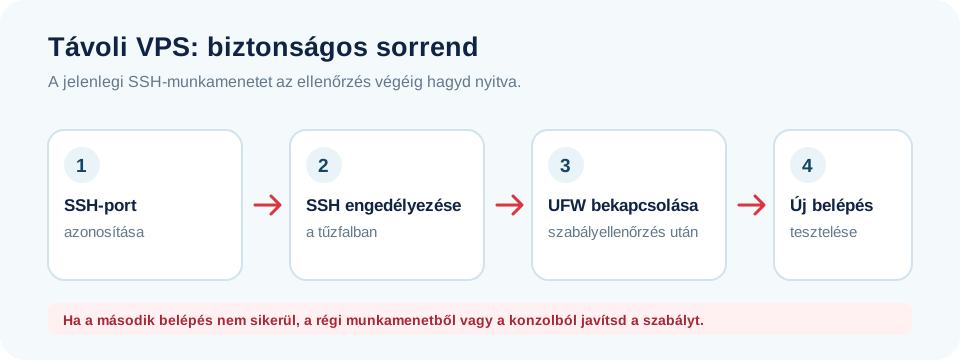
 1. List the required ports
- Check the supplied details for the actual SSH port; it may not be 22. Keep your current SSH session open.
- Check which web server, database and other services are running, and which ports must be internet-accessible. A database usually does not need public access.
- If a provider console is available, verify that you can sign in through it when needed.
2. Allow access before enabling the firewall
Example for SSH on port 22 and a public website; run only if these are the ports you actually use.
sudo ufw status verbose
sudo ufw allow 22/tcp
sudo ufw allow 80/tcp
sudo ufw allow 443/tcp
sudo ufw status numbered3. Enable it, then test in a separate session
- Run sudo ufw enable only after checking the rules and alternative access.
- Run sudo ufw status verbose and check that the SSH port is allowed.
- Open a second terminal and try a new SSH connection. Keep the old session open.
- Test the affected web services externally too. If SSH login fails, fix the rule from your existing open session or the provider console.
Later changes and troubleshooting
- For a new service, open only the necessary port and protocol.
- sudo ufw status numbered shows rule order; check the selected row before deleting it.
- If the website is unreachable, check whether the service is running and whether a host or provider firewall is blocking access.
- Document why each port is open and review the rules periodically.