
Thunderbird often detects email settings automatically, but a custom-domain mailbox may need manual IMAP and SMTP configuration. Use the server names, ports, encryption and username supplied by your provider.
We check incoming and outgoing servers, then test sending and receiving. We do not use a generic server address claimed to work for every provider.
1. Obtain the exact connection details
| Incoming mail | Outgoing mail |
|---|---|
| IMAP server name and port | SMTP server name and port |
| Encryption and authentication methods | Encryption and authentication methods |
| Username (often the full email address) | SMTP username |
2. Create the account
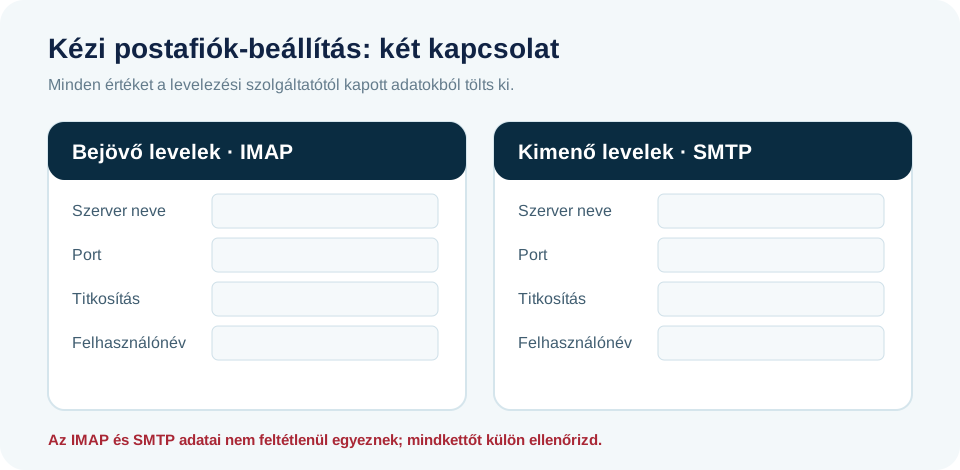
- In Thunderbird, start adding an existing email account, then enter your name, full email address and password.
- If automatic detection differs from the supplied settings, choose Manual Configuration.
- For incoming mail, select IMAP and enter the provider's server, port, encryption and username.
- Check the same settings separately for outgoing SMTP. Use Thunderbird's Re-test option and finish setup only when the results are correct.
 Open image full size
 3. Test each direction separately
- Send an email to your own test address at another provider.
- Reply to the test email and check that it appears in the new mailbox's Inbox.
- Check Sent and Spam too, then test a small attachment if your workflow needs it.
Common errors and what to do
| Symptom | Check availability |
|---|---|
| Password error | Full username, password and app password where required |
| Connection timeout | Server name, port, network and firewall |
| Certificate warning | Check that the server name matches the certificate; ask for help |
| Receives mail but cannot send | The account's assigned SMTP server and authentication |